Learning Tip #9: Comparing Texts


 Save
Save Copy
Copy Add to Collection
 Export to Google Docs
 Share
ShareView any two, or more, texts next to each other side-by-side. This sheet contains examples and instructions.
Did you know that you can view any two, or more, texts next to each other side-by-side? This feature can be helpful in many ways. Below are two examples:
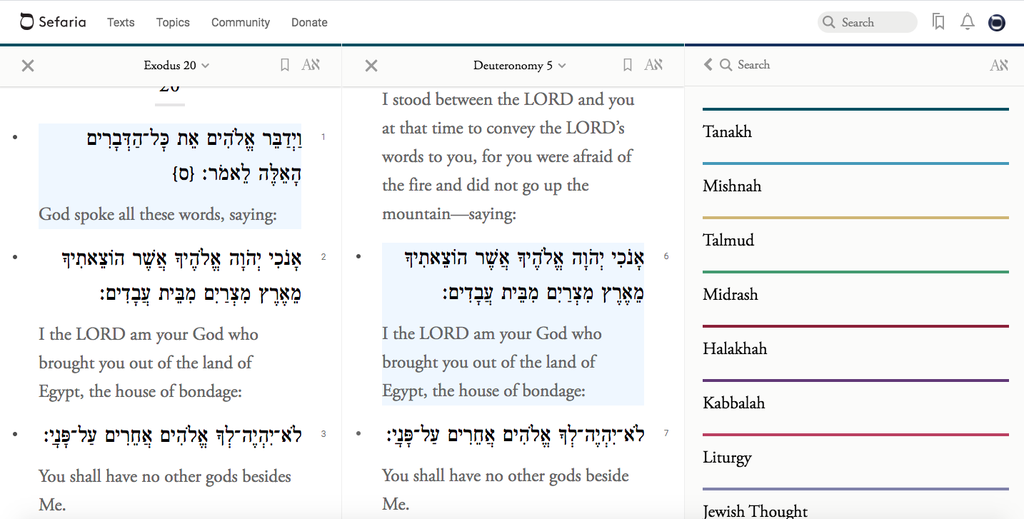
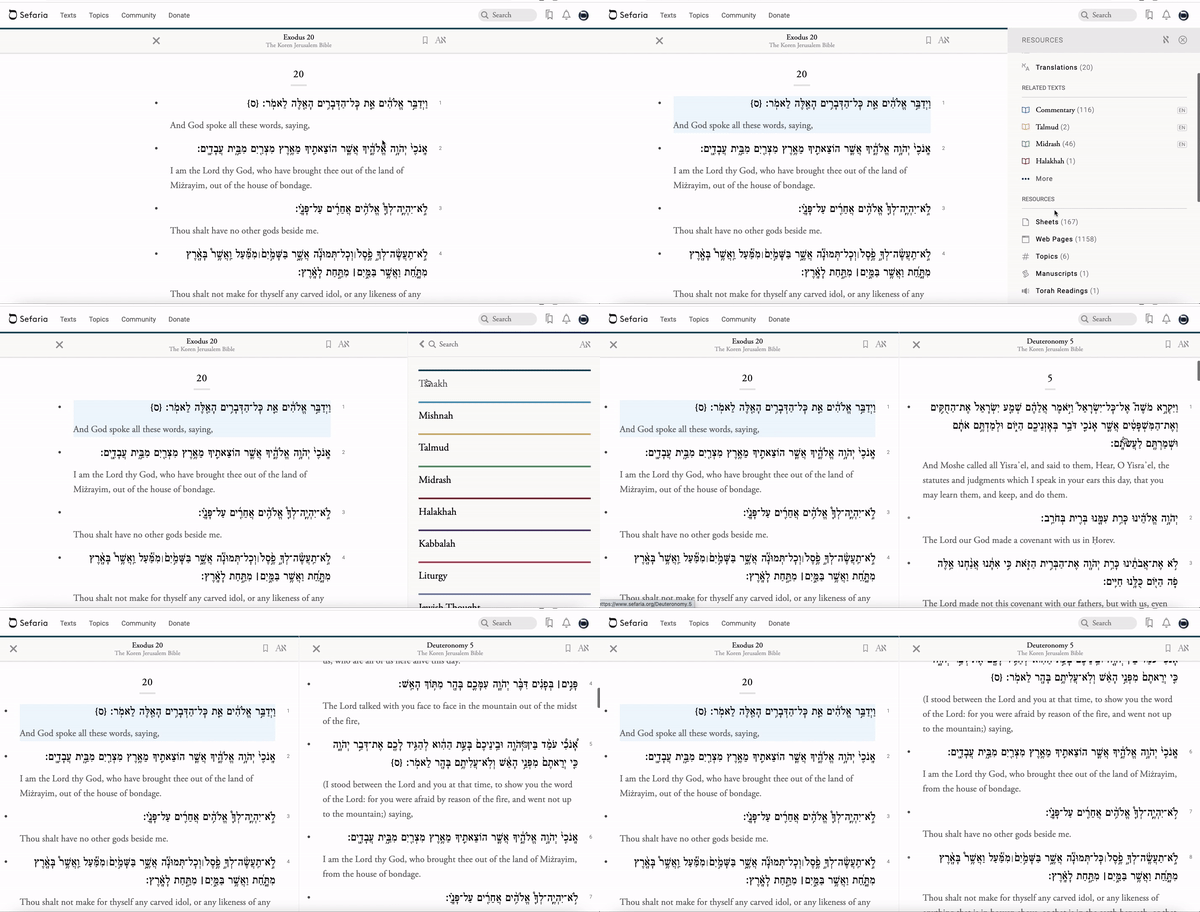
Compare the two versions of the ten commandments.
- Open to Exodus 20.
- Click on the text to open the resource panel.
- Select "Compare Text".
- Open the second version of the ten commandments, Deuteronomy 5:6.
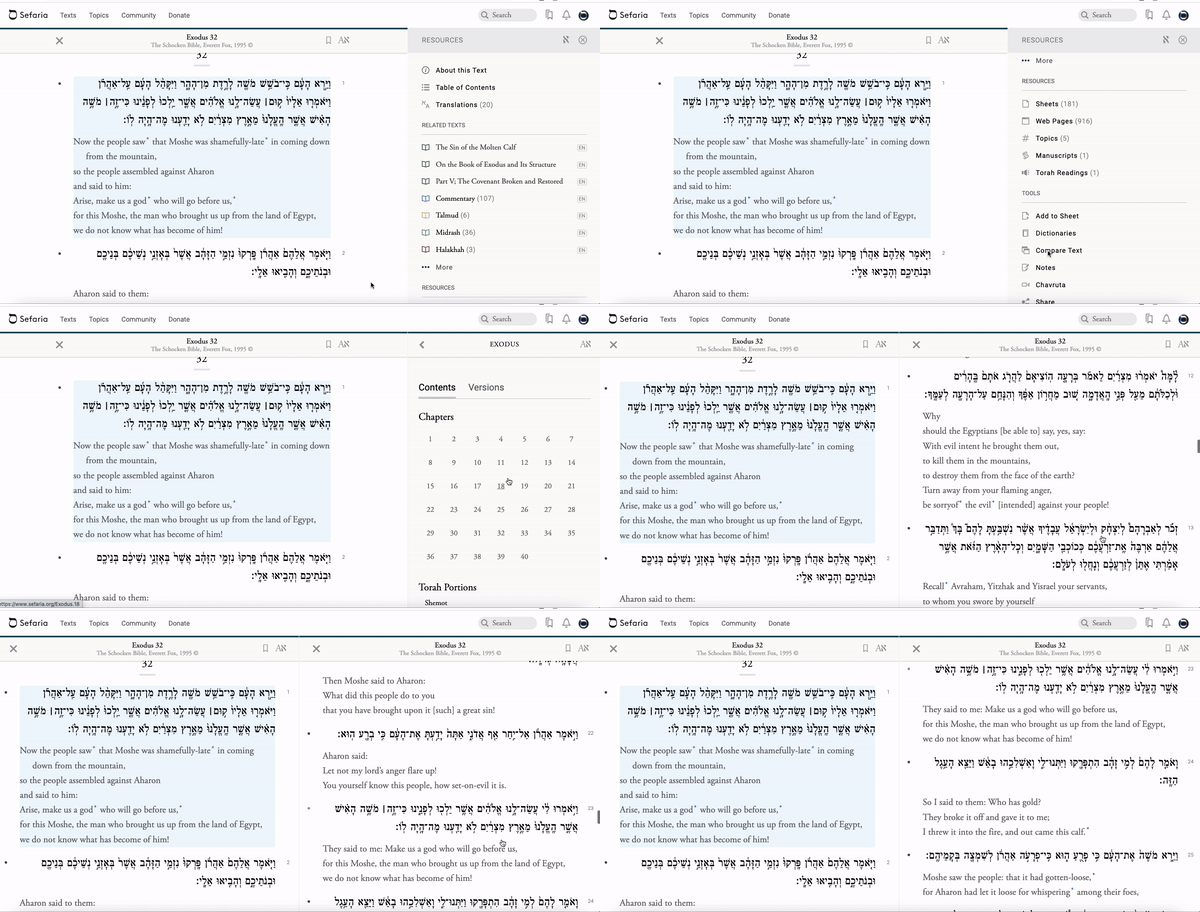
Compare the narrative description of the golden calf (Exodus 32: 1-6) and Aaron's accounting of the events (Exodus 32: 23-24).
General instructions for "Compare Text":
1. Click on your first passage to open the "Resources" panel.
2. Click on "Compare Text".
3. A complete Table of Contents page will open next to your original text. Choose the text that you would like to place next to your text.
4. The two texts will now be displayed side-by-side.
2. Click on "Compare Text".
3. A complete Table of Contents page will open next to your original text. Choose the text that you would like to place next to your text.
4. The two texts will now be displayed side-by-side.
5. Another text can be added by following the same steps with the second selected text.